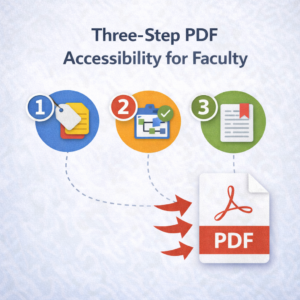
Three-Step PDF Accessibility for Faculty
The CSU has a new artificial intelligence (AI) tool to make PDFs more accessible: CSU PDF Accessibility Remediation. Easy to use, you feed the tool your PDF and download the “processed” results.
Why three steps?
It’s a new tool, and PDF content varies a lot. The tool has shown great success with some files but not all files. It does not work on files containing mathematical equations, scientific notation, or similar STEM content, and also music or extensive non-text content. The tool works best on text content such as articles, book excerpts, or content created in a word processor or presentation software such as Microsoft Office Word or PowerPoint.
Because the results vary, the second and third steps are both accessibility checks.
- Upload the PDF
- Check the processed file
- Replace the PDF through the Course Accessibility Report
Step 2 is vital to ensure the processed file is an improvement over the original.
- First, visually compare the processed file to the original.
- Select all of the content within the processed file. Ctrl-a on Windows or command-a on Mac will select all content within the file. It should all be highlighted blue. You are looking to make sure the tool got everything.
- Hover over any images and make sure the descriptions are accurate.
- If the file contains any links or other interactive elements, tab through the file and make sure you reach each element in order.
These checks will help you determine how well the tool fixed the file. The final check is to run the processed file through your Course Accessibility Report.
As a CSU AI, this tool does not store, train on, or otherwise use uploaded PDFs. It remediates them, then deletes them after 72 hours.
Learn more about the Three-Step PDF Accessibility for Faculty. Contact UDC for a consultation to Make An Appointment via Bookings.