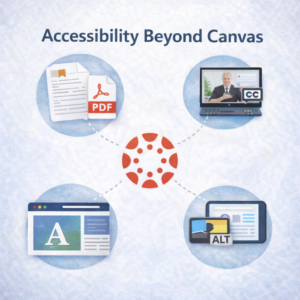
Accessibility Beyond Canvas
Canvas is only part of the picture. How might you know if a software tool or website is accessible? The Universal Design Center recommends the WAVE browser extension as your first step to check. https://wave.webaim.org/
Install the WAVE browser extension into your favorite browser. Open the webpage or web application you’d like to evaluate. Select the wavy-W button for a colorful report about how accessible that web content might be.
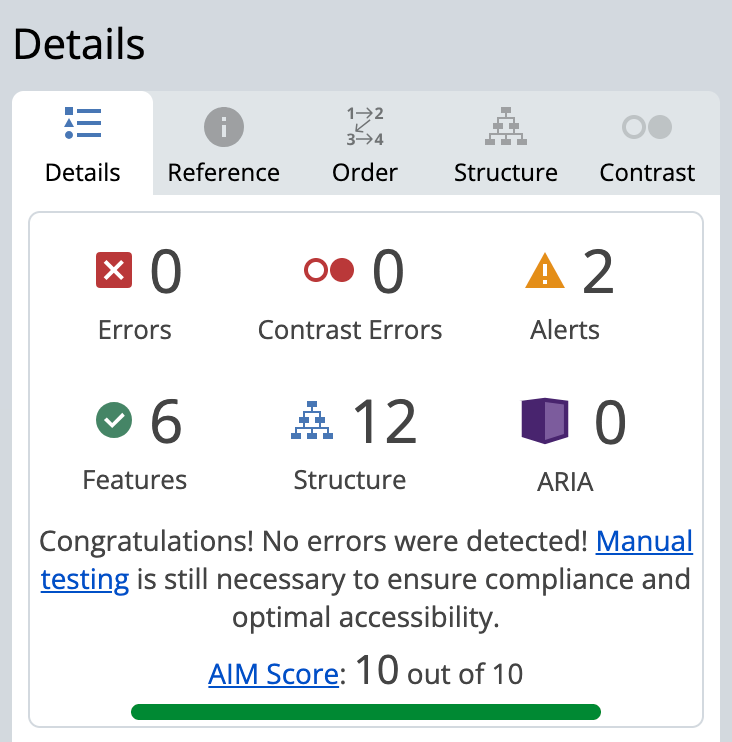
The WAVE report contains a lot of information, but most of it is instructive rather than actionable. Focus on the AIM Score for a quick summary, and on any Errors.
Errors appear on the page with individual red icons. These are the barriers your students might encounter. Some of the most common errors include:
- Missing alternative text for images – Add a concise description of the information conveyed by the image. If the image contains text, include that text in the description.
- Missing form input labels – Make sure any form fields have associated plain language labels.
- Empty links – Often left over from the editing process, erase any empty link fragments.
Check Contrast Errors and Alerts too, as some of each category might be action items to fix or send to the support team for the web application.
The WAVE toolbar is an important and easy first step to check the accessibility of a web page or web application, but software can’t check everything. After running the WAVE toolbar, conduct a short 8-step manual check to catch anything the software missed.