Accessibility and Plain Language
Computers speak their own languages, but computer-ese can compound accessibility issues. Some simple steps that rely on you as the subject matter expert can help your students.
Image Descriptions
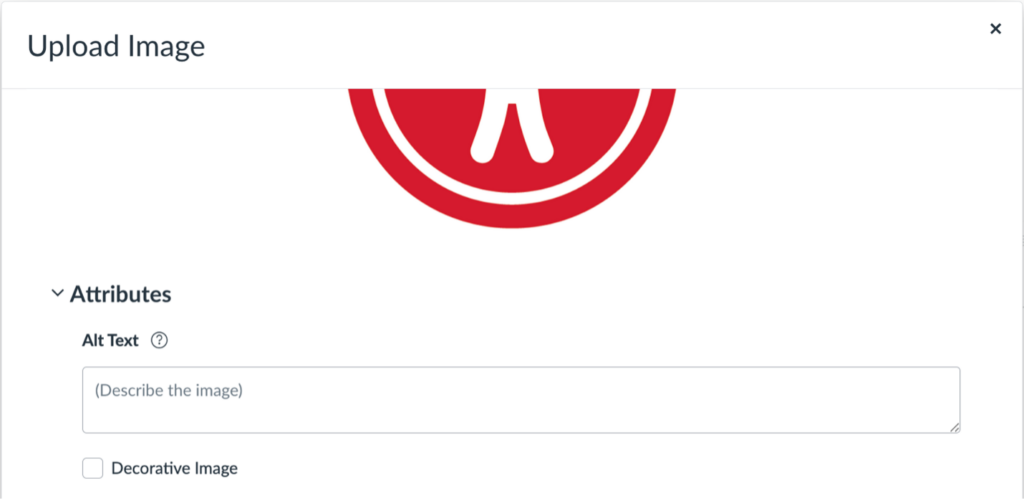
If you don’t enter alt text for an image (or mark it as decorative), Canvas fills in the file name, which is frequently unhelpful.
When uploading a new image, scroll down. Under Attributes, enter a concise description of the information conveyed by the image. If the image doesn’t provide information, check the Decorative Image box.
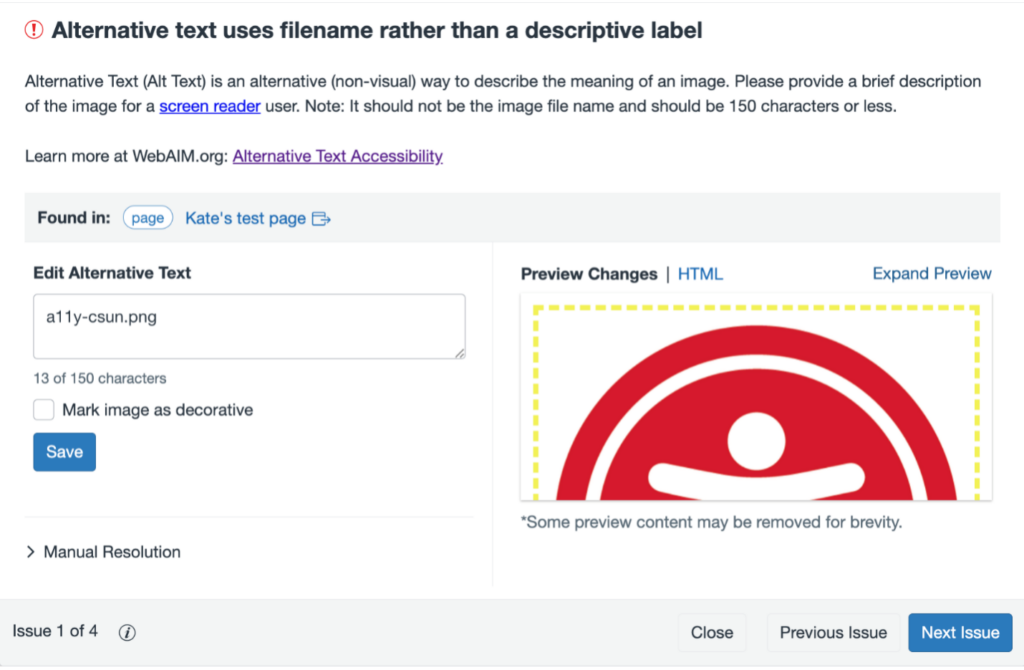
For images in Canvas that did not have a description applied, both the Canvas Accessibility Checker and the Course Accessibility Report will flag file names as descriptions. Both tools let you edit the description (or mark it as decorative).
If you’re not sure how to describe an image, artificial intelligence tools like Arizona State University’s Image Accessibility Creator let you upload your image and provide a draft description for you.
Links
Web addresses incorporate more plain language now, but they’re still written for computers. When adding external links to your course, don’t just paste in the Uniform Resource Locator (URL).
If you use the link button, the Insert Link window prompts you for a simple description (Text) as well as the Link (URL).
If you already have URLs in your course, select them and choose Link Options to see the same Text and Link fields.
As with image descriptions, the Course Accessibility Report will flag URLs and give you a similar edit screen to fix them.
File Names
Speaking of file names, if your students are likely to download a file, consider giving it a file name that will help them identify it later. Use as much plain English as possible, though you may want to include the course abbreviation and number.