
A Gift to Fall 2026 You
Lower your cognitive load through timing.
Workload. We’ve heard this loud and clear from so many of your colleagues. Of course you want to do right by your students, like making your course content accessible, but there are only so many hours in a day and so many demands on your time.
TidyUP by Cidi Labs is your first tool to tackle your accessibility workload. TidyUP lists all content in each course. For course files, TidyUP shows you where the file is used in your course, when it was last updated, and more.
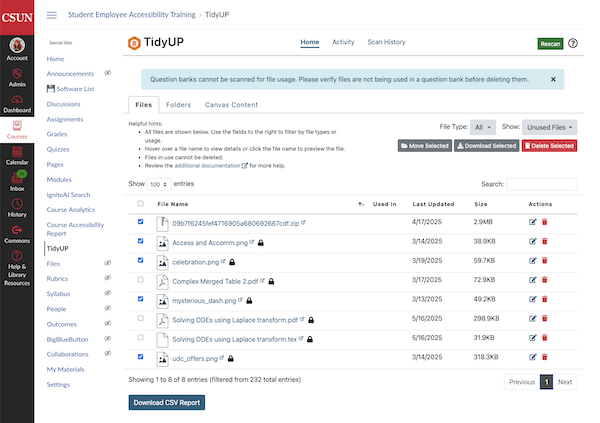
For Canvas content (Pages, Discussions, Assignments, etc.), TidyUP shows whether the content is published, contains information, when it was last updated, and even if it’s linked from another Canvas content item. TidyUP isn’t just a report, though — there are several actions you can take on your content directly through TidyUP.
But that introduces a new level of workload: cognitive load. “Which file is this?” “Is it the most current version?” “Did I use it last semester?”
You can optimize TidyUP — and optimize your own time — by setting aside a half-hour before the end of the Spring semester to run TidyUP on each course you may copy for next year. While the Spring semester and your Spring course content are fresh in your mind, apply that knowledge to the information listed in TidyUP to accurately and efficiently streamline your content before you copy it.
- Find TidyUP in your course navigation menu, often near the bottom above Settings.
- TidyUP will prompt you to Scan Course every time you open it.
- Under the Files tab, check the box next to each file you will not use for 2026-27.
- Scroll up to the top of the page and use the Download Selected button to save a ZIP file of all of the files you aren’t carrying over.
- You could keep a local copy, upload the files into a sandbox Canvas course, and/or upload the files into Box.
- TidyUP has two drop-down filters: File Type and Show. If you have a large number of files, these filters can help you get through your list.
- File Type lets you go through images, PDFs, etc., as an alternative to the complete list of files.
- Show lets you filter to files not used in the current semester — but keep in mind you may have used some content this semester that you will not continue using. Now is the right time to weed out old “used” content too.
- Once you are comfortable that you have backed up the content you won’t use in the coming year, the Delete Selected button will remove it from the current Spring course (and only from the current course).
Thirty minutes in May could save you hours or overwhelm or both in August.