One Simple Trick to Boost Your Accessibility Score In Canvas
Update older files to modern formats
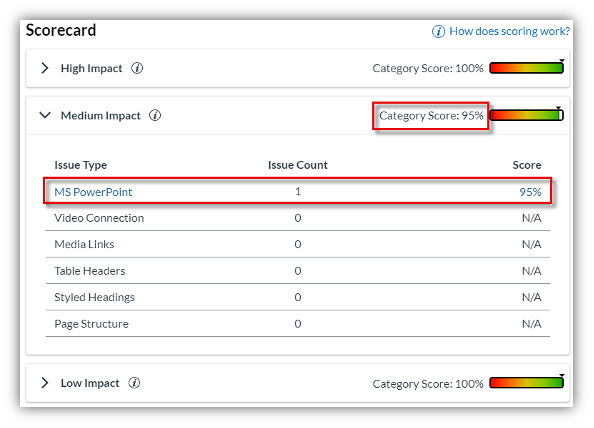
Older Microsoft Office file formats, such as PPT and DOC, can reduce a course’s Accessibility Score by approximately 2–5% per file. Converting these files to modern formats—PPTX for PowerPoint presentations and DOCX for Word documents—is a quick way to improve accessibility and compatibility for students.
Modern file formats also support more features, including Microsoft’s built-in Accessibility Checker. This allows faculty to identify and address additional accessibility issues, such as missing alternative text, poor color contrast, and improper document structure.
A quick fix in Canvas
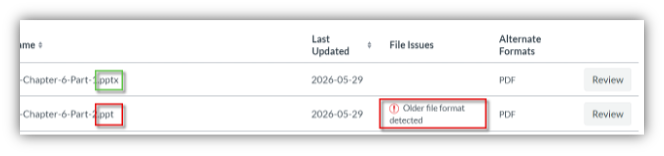
Faculty can identify older file formats through the UDOIT module under the “Course Accessibility Report” in the course navigation pane. After reviewing the course’s file issues, look for the notice labeled “Older file format detected.”
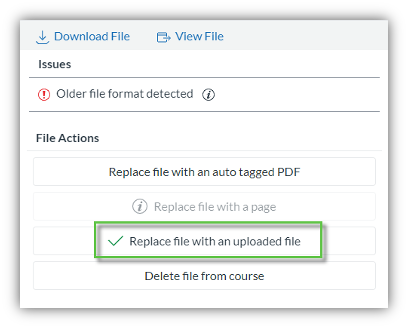
To resolve the issue, open the file in Microsoft PowerPoint or Word and select Save As. Choose the modern file format—.pptx or .docx—and save the updated version.You can then upload the new file through UDOIT and replace the older version in Canvas. The updated file will overwrite the original, and UDOIT will automatically rescan the course.
In many cases, this simple conversion can immediately improve the course’s Accessibility Score while providing students with a more usable and compatible learning experience.