Custom GPTs Are Moving to Plugins: What You Need to Know
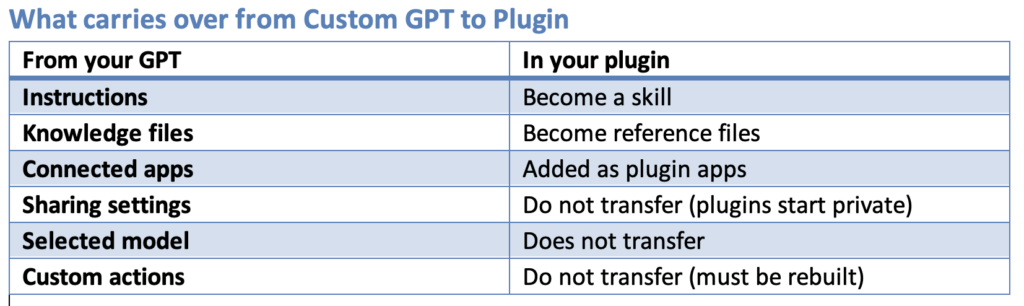
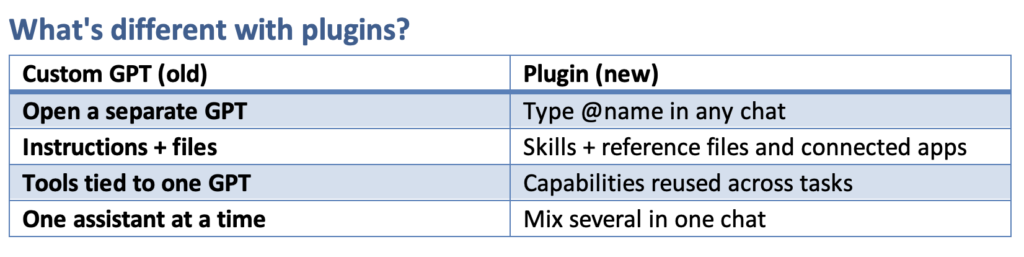
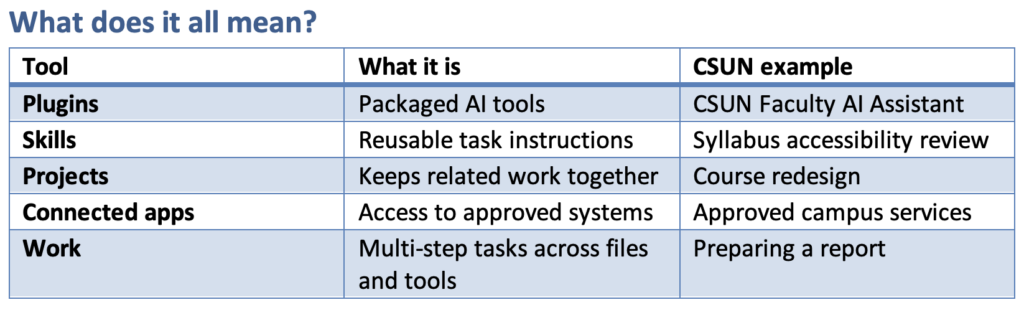
OpenAI is replacing Custom GPTs with Plugins. Custom GPTs bundle specialized instructions, reference files, and connected apps into tools you can call from any chat. If you never built a GPT, this mostly means a cleaner ChatGPT. If you did, here is how to keep it your Custom GPT and move it into a Plugin.
Key dates
- October 26, 2026: Creation of new Custom GPTs ends. Publish any drafts you want to keep before then. Existing GPTs you have not migrated can still be edited.
- December 11, 2026: OpenAI’s standard retirement date. Custom GPTs and their pages become inaccessible.
- February 11, 2027: OpenAI and the CSU anticipate a complete retirement date of GPTs
- Good news: Your existing GPT conversations remain accessible after retirement. No action needed.
Before you migrate: a quick checklist
- Publish your Custom GPT first. Unpublished edits do not transfer.
- Reset sharing. Every plugin starts private; old sharing settings do not carry over.
- Test it. Try your usual prompts and at least one harder case before others rely on it.
- Share early. Confirm the right people can install and use it well before retirement.
If you built a Custom GPT: move it in 3 steps
Before you start, finish your edits and publish. Only the latest published version transfers, and the original GPT becomes read-only once migrated (it keeps working until retirement). Publishing does not make your GPT public.
- Migrate. In ChatGPT, open My GPTs (if you don’t see it, you might have to hit the ••• menu then select GPTs), select your GPT and choose Migrate to plugin. The option may appear at different times for different accounts.
- Find and use. Open Plugins in the sidebar and find your plugin under Personal under “Installed”. Call it in any chat by typing @ and its name; ChatGPT may also use it automatically when it fits your request.
- Share. Select your plugin, open the ••• menu, and choose “Share”. Add specific people, or set Link access to Anyone in CSUN with the link and use Copy link. (Visible in CSUN directory is not currently available.) Colleagues you share with will need to install it before they can use it.
If you use GPTs someone else built
You don’t need to do anything right now, and you can’t migrate a GPT you didn’t create. Watch for a replacement plugin from the creator. Access to the old GPT does not automatically give you access to the new plugin, so ask the creator to share it with you.
Need help?
Book a 1-on-1 consultation with the Faculty Technology Center at ftc@CSUN.edu
Learn more
- Custom GPT Retirement and Migration FAQ: https://help.openai.com/en/articles/20001519-custom-gpt-retirement-and-migration-faq
Plugins in ChatGPT:https://help.openai.com/en/articles/20001256-plugins-in-chatgpt