How Headings Help
Think of headings like an outline. Your “heading level 1” is probably the title of your Page or document. Headings level 2 summarize the sections, while headings below 2 fill in related information.
The outline idea isn’t just an exercise. Students who use screenreaders can select only the headings in a page or document, and use those just like an outline, for a summary or to navigate. Or at least they can if your headings are set up in the page or document structure.
Headings provide visual information
Headings aren’t just an outline, of course. They provide important visual information: framing the content, breaking up sections, maybe adding a pop of color. For accessibility, the design of your headings isn’t what’s important (as long as you’re mindful of color contrast).
Use real headings
It may be tempting to add a heading through design: make it big, bold, colorful. These headings aren’t real headings, though; they’re styled regular text. Assistive technology users will read right through them as part of the flow of the content.
For headings that function for all of your students, use the Canvas content editor. Next to the font size, instead of Paragraph, use Heading 2, 3 or 4.
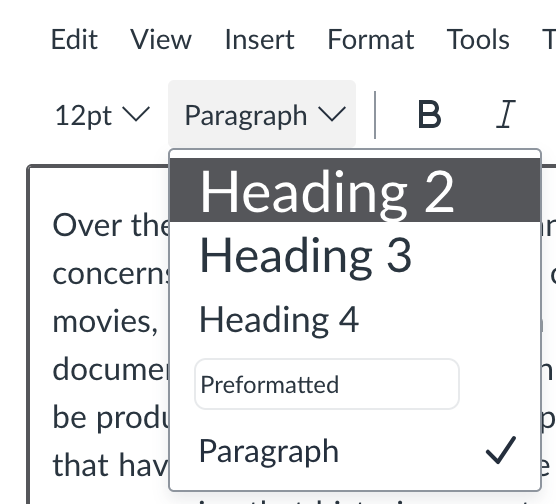
Don’t like the Canvas design? Now you can style away. Your text will stay “Heading 2” in the edit bar as you change the design. That Heading designation is the structure that your students can access using screenreaders or other techniques.
Keep heading levels in order
What else is there to know about headings? Order matters! Just like with an outline, don’t skip a level as you go down. Canvas will start you out with Heading Level 1 but other editors may not; always start with level 1.
Valid:
Heading 1
Heading 2
Heading 3
Heading 3
Heading 4
Heading 2
Heading 3
Not valid:
Heading 2
Heading 4
Heading 4
Fix heading issues in Canvas
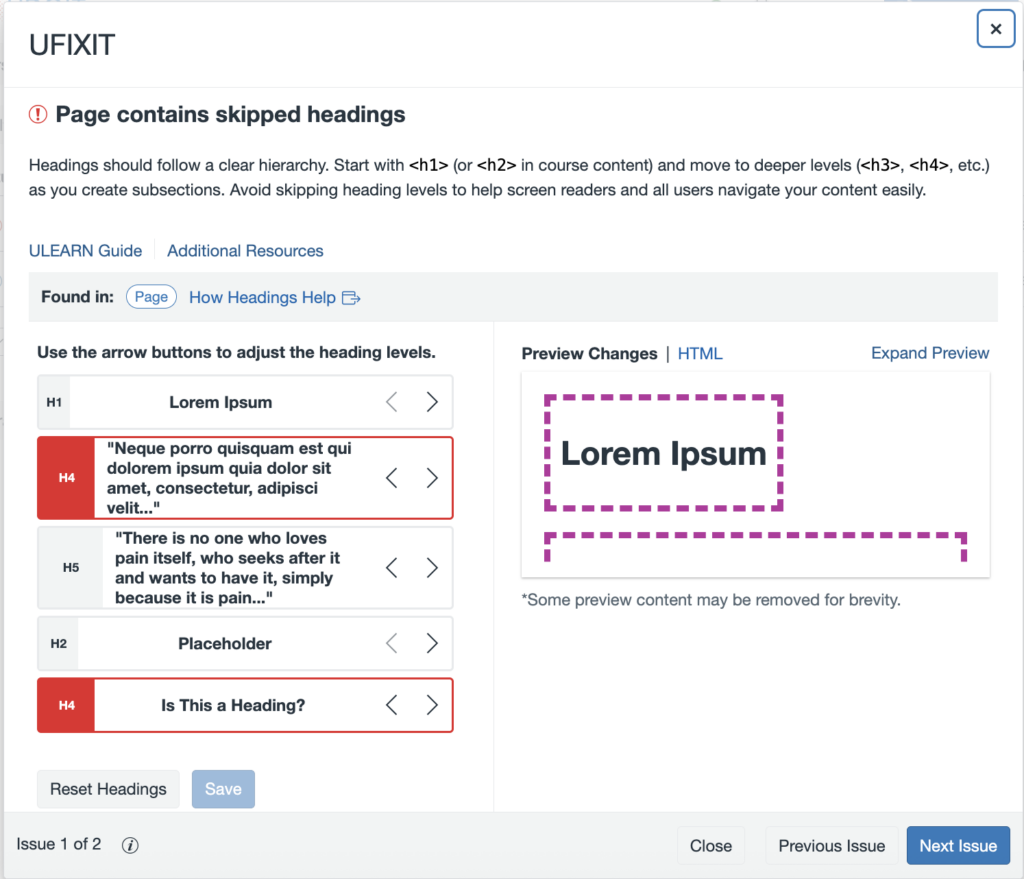
Is your Course Accessibility Report flagging some of your headers? You can fix many issues right from within the report. Under the UFIXIT tab, select the Review button next to the Heading issue. If “Styles might be used instead of semantic markup for structure,” simply select the correct heading level from the choices within the Review dialogue. If the “Page contains skipped headings,” you can fix the order and the levels within the Review dialogue using the arrow buttons.
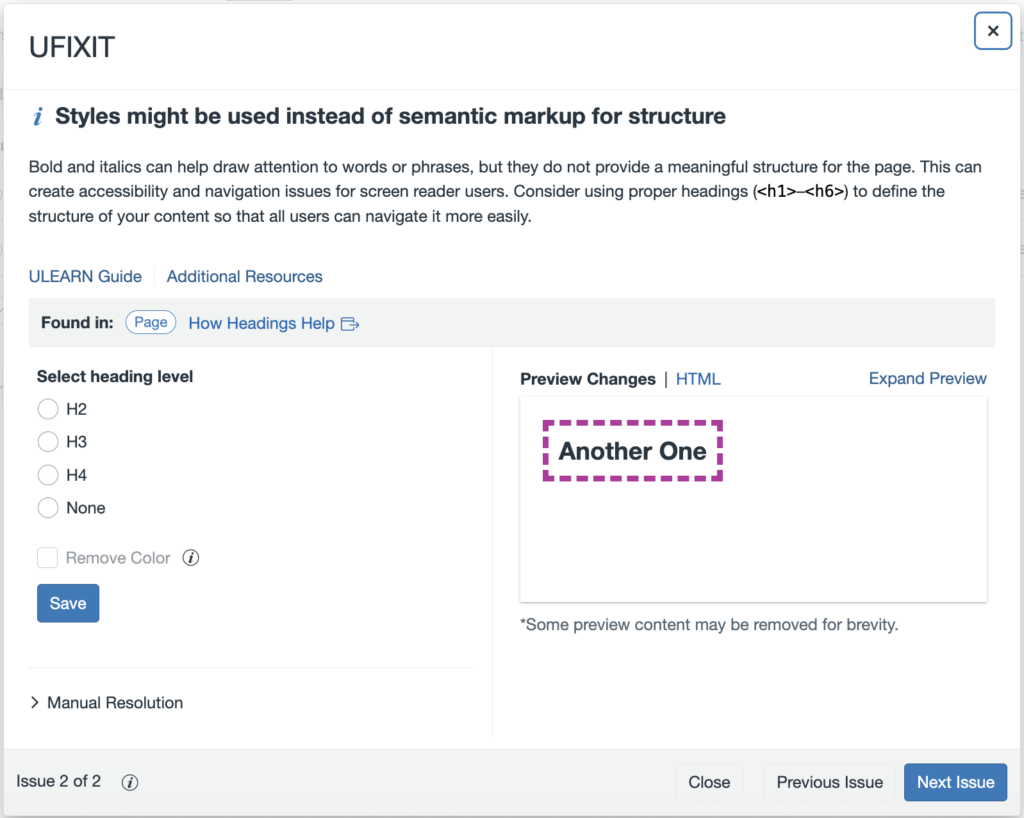
If you tackle “Styles might be used …” first, any issues with order will appear when you open “skipped headings.”
Headings in other platforms
While these examples have focused on Canvas, headings are common across content platforms: documents, PDFs, web pages, etc. Your favorite content editing tool almost certainly has heading levels built in and ready to use.