
Just One Thing: Accessible Links
The annual Information Technology survey asked students about their experiences with accessibility, and the top issue they reported is broken links.
Validating Course Links
Canvas has a built-in Course Link Validator to help you find and correct any broken links in your course.
Here’s how to utilize it:
- In the course navigation menu, select Settings.
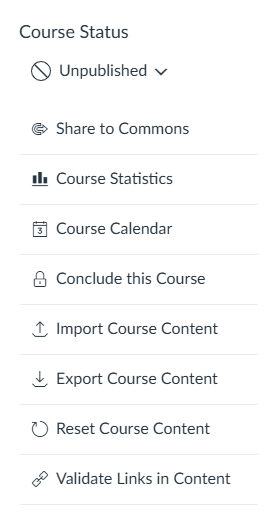
- On the Course Details page, there is a second menu following Course Status.
- Select the last item in the second menu, Validate Links in Content.
- Select State Link Validation.
- If the tool finds any broken links, it will list them under the title of the Page where it found them.
- Follow the Page title link to edit the page and correct the link.
Editing Course Links
If you’re editing links, here are a few more best practices:
- Give the link a plain language description. Don’t use the address (URL) as the link text.
- Let Canvas style your links. Another of the students’ top requests is consistency, and they’re already familiar with links in Canvas.
- Give each link a short but meaningful description that signals the link’s destination. Each link’s text should be unique within the Page or document where it appears. The title of the destination web page is often a good link label.
- If a link appears more than once on a Page, use the same label each time.
You can learn more about accessibility for links, and listen to a screenreader read a few links at Best Practices for Accessible Links.