
Self-Service Captions in Panopto
The update to the Americans with Disabilities Act (ADA) Title II takes effect in less than 60 days, on April 24! The Chancellor’s Office and our own Universal Design Center offer a variety of resources to help you reach your accessibility goals. [https://www.csun.edu/universal-design-center/accessible-technology-initiative/ada-title-ii-update]
Closed captions on videos are essential for some, like our deaf and hard of hearing students, and valuable for many others including students with different native languages or those who learn best by reading. CSUN is committed to supporting both students and faculty by providing professional captioning services at no cost to academic departments.
You can still get captions through NCOD: Deaf and Hard of Hearing Services by filling out a “New Media Request” [https://www.csun.edu/ncod/ncod-deaf-and-hard-hearing-services/media-captioning] and sharing your video.
For faculty who use Panopto, though, we now offer self-service captions from within Panopto. You can submit a request directly to our captioning vendor (Verbit) from inside Panopto. Verbit will upload the captions right to your video in Panopto. [https://www.csun.edu/universal-design-center/video/request-captioning/panopto-closed-captions-self-service]
Instructions
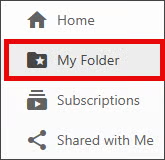
Open your video in Panopto.
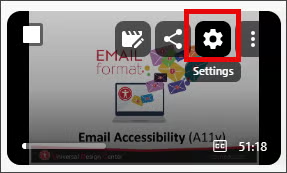
Select Settings (the gear icon).
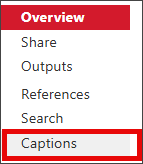
In the Settings menu, select Captions.
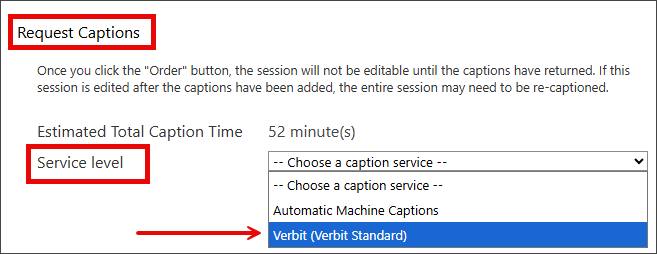
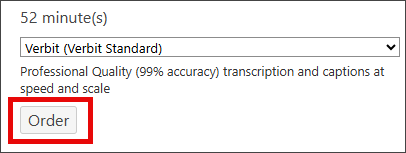
Under Request Captions, for the Service Level field, select “Verbit (Verbit Standard).”
Select the Order button.
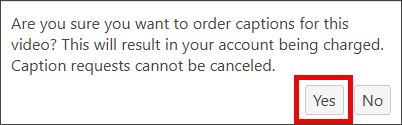
This brings up a confirmation window that mentions charges. These captions are included under our contract with Verbit and there are no additional charges. Select the Yes button to confirm.
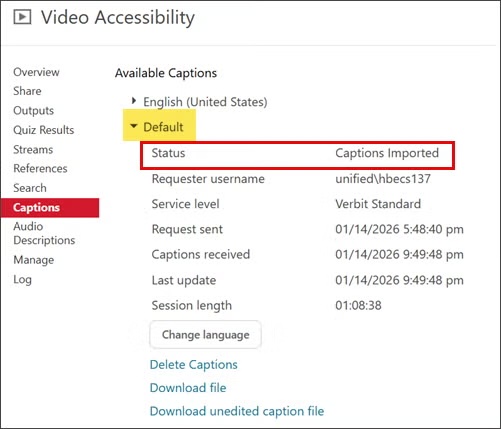
Captions may take up to 48 hours to process. At this time there is no email or other notification that the captions are available, but some updates will be displayed on the Settings: Captions screen.
For more information, visit the Universal Design Center’s Panopto: Closed Captions Self-Service page [https://www.csun.edu/universal-design-center/video/request-captioning/panopto-closed-captions-self-service].